保護 Java 函式庫
使用圖形介面工具保護 Java 函式庫
進入 Protector4J 資料夾,執行 p4j-ui[.exe],您將看到以下使用者介面。
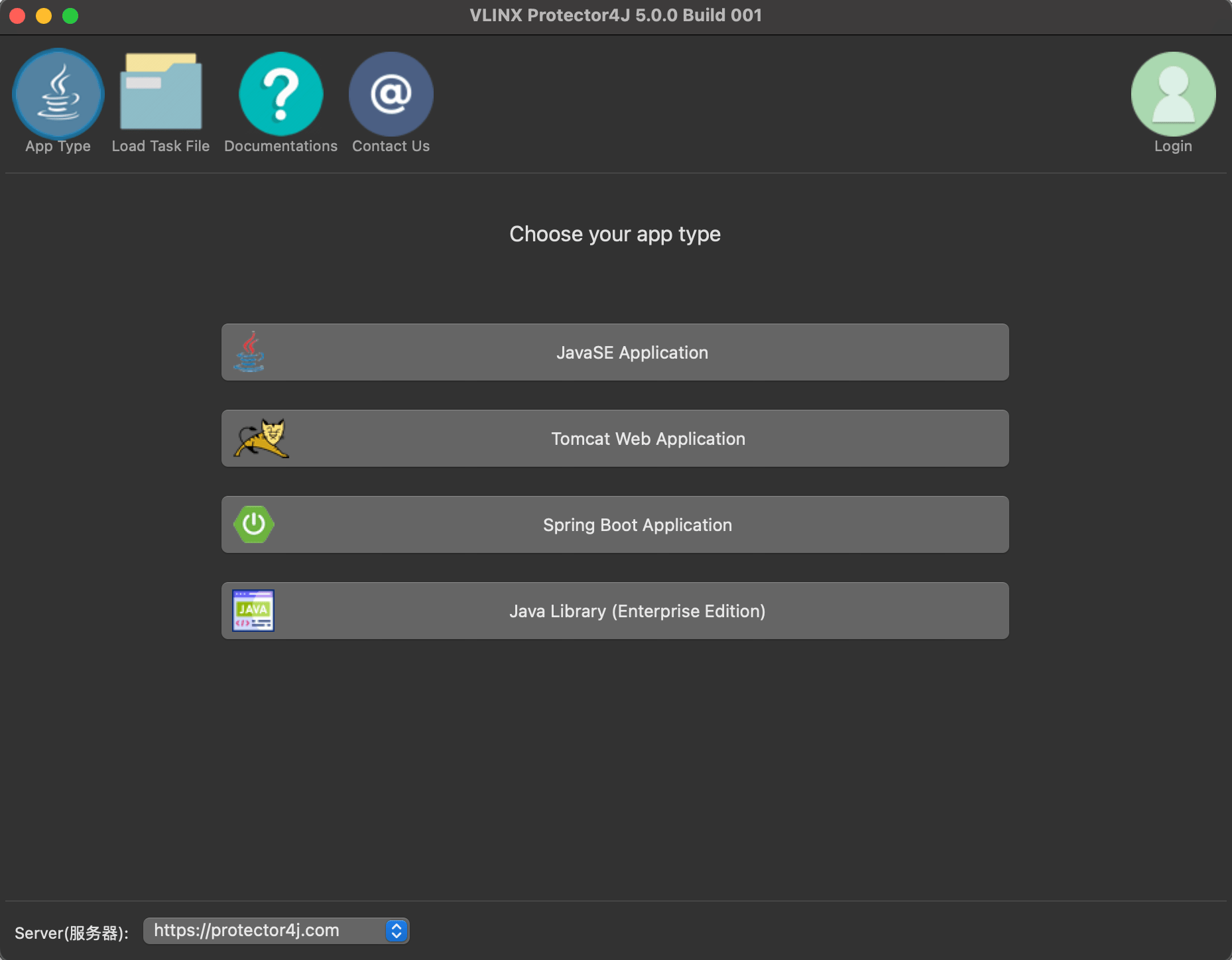
對於 macOS 使用者,只需像普通 Mac 應用程式一樣雙擊 Protector4J.app 即可。
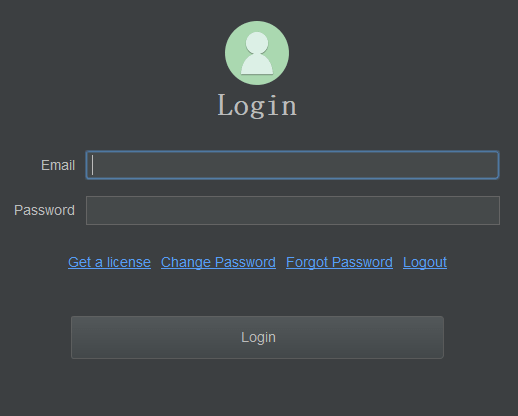
登入
如果您已購買授權,請點擊右上角的登入按鈕並輸入您的使用者資訊。如果您沒有授權,仍然可以試用此工具。
Java 函式庫保護功能需要企業版。
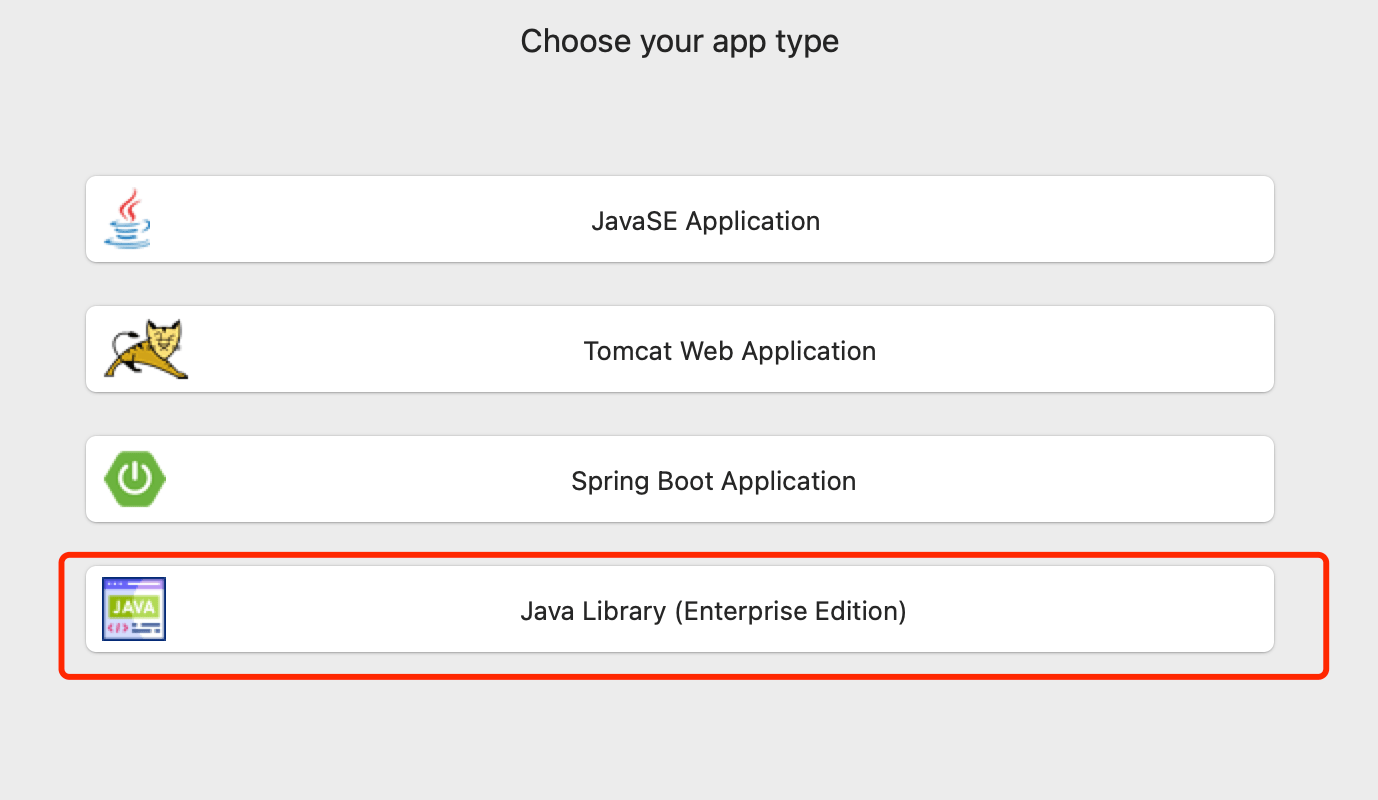
選擇應用程式類型
在應用程式類型頁面上點擊「Java Library」按鈕
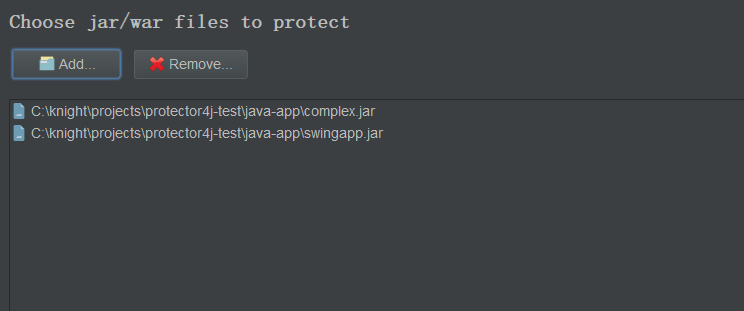
選擇需要加密的 jar/war 檔案
選擇您要加密的 jar/war 檔案,您可以選擇一個或多個檔案
指定加密方式
在此頁面上您可以選擇加密方式
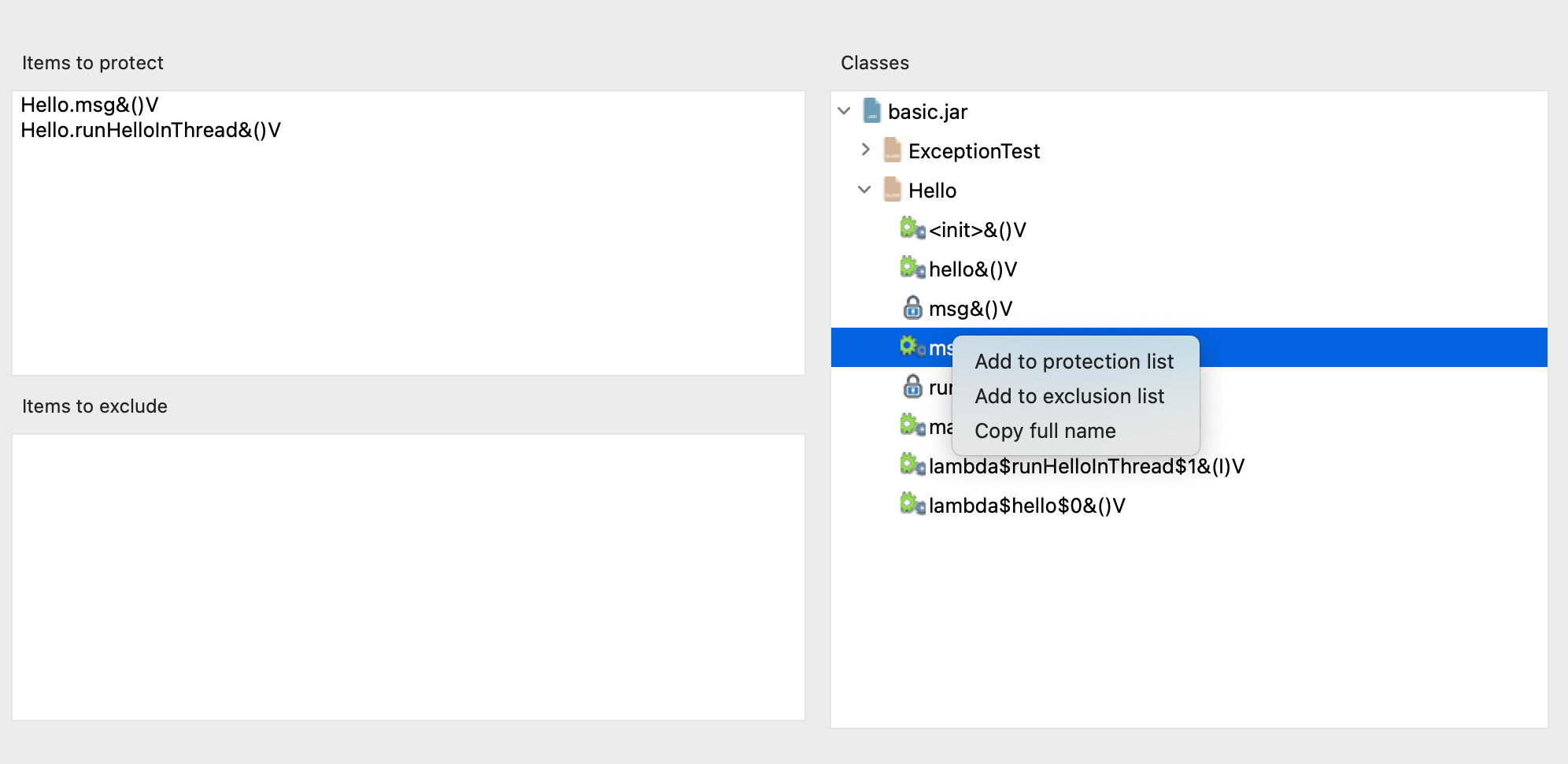
您可以從右側的結構目錄中選擇需要保護的類別和方法,也可以手動輸入需要保護的項目,格式如下。
# Protect a method
# Class name.method name&method signature
Hello.hello&()V
# Protect all methods under the class
# Directly input the class name
Hello
您可以使用相同的格式在「排除項目」中輸入要排除的內容。
使用命令列工具保護 Java 函式庫
組態檔
命令列工具需要指定一個任務檔案作為參數。
進入 protector4j/task-templates 資料夾,找到 java-lib-task.yml,複製並修改一份。
# The jar files that need to be encrypted
jarFiles: []

# Protect a method: MethodName&MethodSignature, like io.test.Hello.hello&()V
# Protect all methods in a Class: ClassName, like io.test.Hello
itemsToProtect: []

# Exclude items that are not encrypted in the same format as itemsToProtect.
itemsToExclude: []


# The output folder
outputFolder: ''

# Create a new and unique folder for the application, the folder name is like p4j-<taskId>
createNewFolder: true
執行加密任務
進入 Protector4J 資料夾並執行以下命令。
Linux 或 macOS
對於 macOS 使用者,您可以在 /Applictions/Protector4J.app/Contents/protector4j-mac 找到命令列工具。
./p4j -t java-lib -f path-of-task-file -u email -p password
Windows
p4j -t java-lib -f path-of-task-file -u email -p password
您可以執行 p4j --help 來查看詳細參數。
加密結果
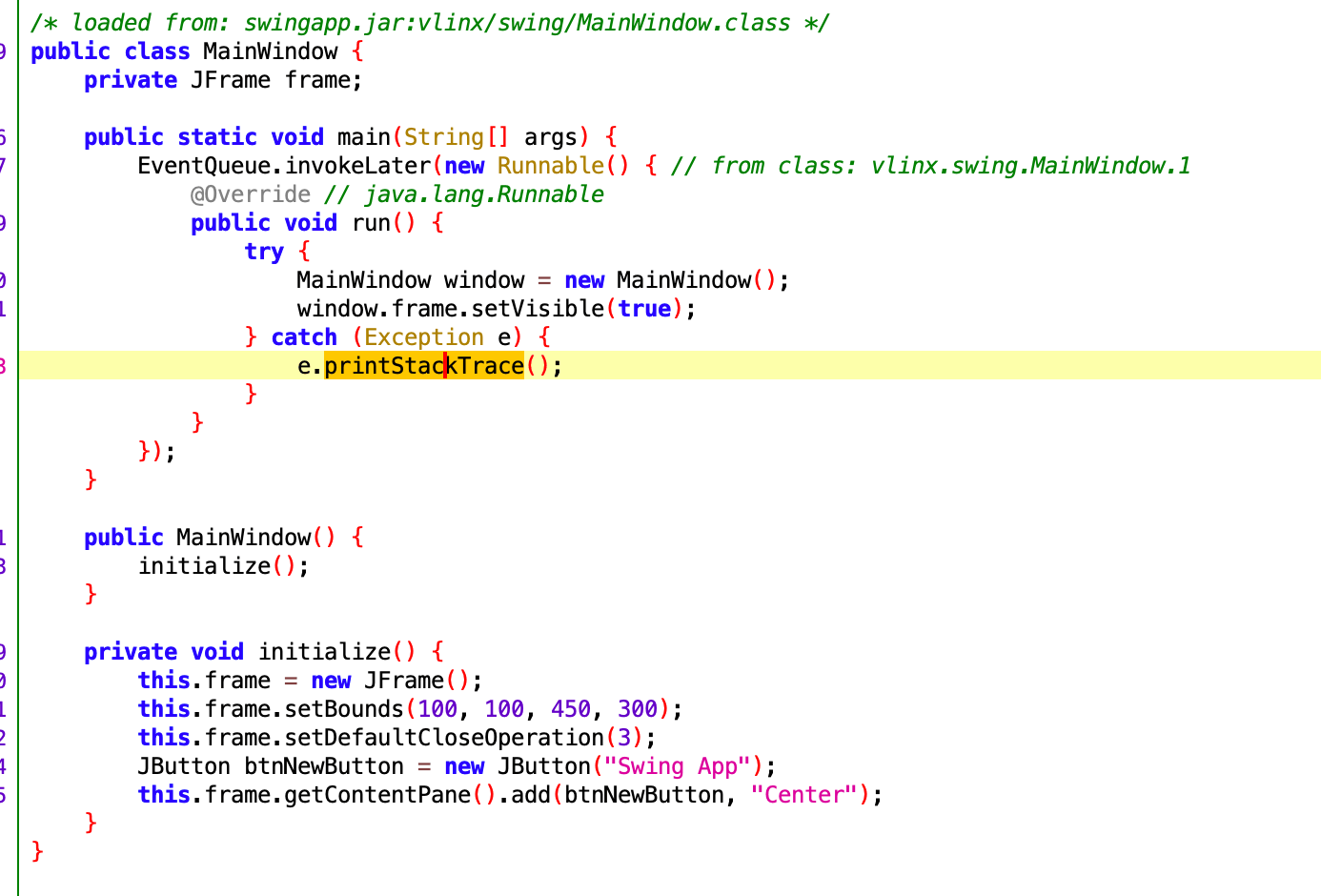
與 Java 應用程式的整體加密不同,Java 函式庫加密針對特定方法。加密完成後,您選擇的方法將被轉換為原生程式碼,可以與標準 JRE 搭配使用。如果使用者需要破解,必須在二進位層級而非位元組碼層級進行,大幅增加了破解難度。
加密前
加密後
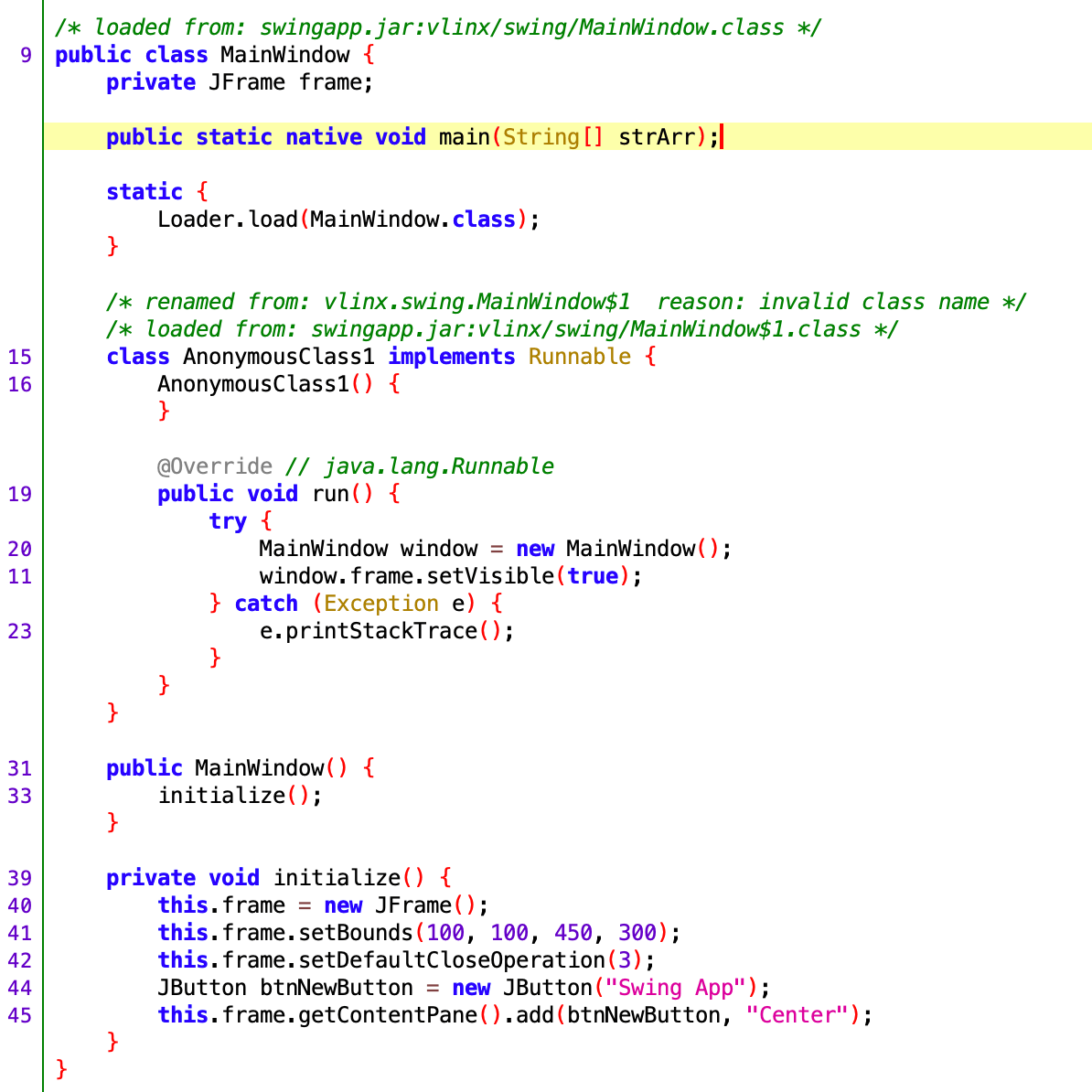
加密完成後,Main 方法被轉換為原生方法。
限制
- 不支援 try-catch 程式碼區塊。
- 不支援 Spring Boot 打包的 jar 檔案。
- 不支援 war 檔案。
範例應用程式
目前 Java 函式庫加密功能不支援免費使用者試用,您可以下載此範例應用程式來查看 Java 函式庫加密的效果。這是一個 Swing 應用程式,您可以使用 java -jar swingapp.jar 來執行它。它的 main 函式已被轉換為原生方法,您可以使用反編譯工具進行驗證!
未加密的應用程式
已加密的應用程式