Protector4J Advanced Mode Settings
Advanced mode lets you set the protection scope, the compatibility options, and the options specific to each application type by hand. The first time you process a new application, start in simple mode, or run a compatibility scan from the advanced options page and adjust from its results.
This page expands on the advanced mode section of the GUI Guide. To decide which classes to leave unprotected, see Compatibility and Protection Scope; to write the equivalent automated command, see the CLI Reference.
1. Entering advanced mode
- Choose the application type and select the input JAR or WAR.
- Choose the bundled Java version and at least one target platform.
- Under Mode, select Advanced — customise the options yourself.
- Click Next to open the advanced options page.
If you are already on the output review page, click Customize… to go back to the advanced options. After making changes, return to the output page and check that the summary reflects them.
The Java version and target platforms cannot be changed on the advanced options page — go back to the input page for those. A multi-platform task produces a separate output per platform, and their vlxjre directories are not interchangeable.
2. Common options
All four application types share this section, though some settings only apply to certain types. Library Encryption generates no startup script, so it has no JVM startup options; its archive suffix setting is used to suggest and keep the output file name in step.
| Setting | Default | What it does | Recommendation |
|---|---|---|---|
| Archive suffix | p4jx | Names the application archive .p4jx or .jar | Keep .p4jx. Switch to jar only when a third-party component hardcodes a .jar file name. |
| Disable JIT for protected methods | Off | Keeps protected methods running in the interpreter only | Turn it on for highly sensitive code, after you have measured the performance cost. |
| Append scanner ZIP overlay | Off | Adds a compatibility view for tools that scan the ZIP structure | Turn it on only when the compatibility scan recommends it, or when the application really does read the physical ZIP structure. |
| JVM startup options | Empty | Writes JVM options into the generated startup scripts | Enter one complete option per line. |
| Compatibility scan… | Not run automatically | Scans the input and offers conservative recommendations | Run it again for a new application, after a framework upgrade, and after changing the protection scope. |
The options specific to each application type:
| Application type | Options | Initial state | CLI equivalents |
|---|---|---|---|
| Java Application | Main class, Classes to exclude, JavaFX and WebView | Main class taken from the manifest; no exclusions; JavaFX not bundled | --main, --exclude, --javafx, --javafx-webview / --no-javafx-webview |
| Spring Boot | Main class, Layout, Protect dependency JARs, Classes to exclude, JavaFX and WebView | Main class taken from Start-Class; p4jx-fat layout; dependencies unprotected; no exclusions; JavaFX not bundled | --main, --layout, --protect-lib, --exclude, and the JavaFX options |
| Tomcat | Tomcat version, Context path, Classes to exclude | No version chosen; /app; no exclusions | --tomcat-version, --context, --exclude |
"No exclusions" means every application class of that type is protected by default. It does not mean third-party dependencies are protected too: BOOT-INF/lib for Spring Boot and WEB-INF/lib for Tomcat stay unprotected by default.
Archive suffix
Choosing jar changes the file name only; the content is still P4JX. It cannot be opened with ordinary ZIP or JAR tools, and a standard JRE cannot load it. For Library Encryption, this setting switches the output file's suffix between .p4jx and .jar; if you type a different suffix yourself, your file name is kept as-is.
CLI equivalent:
--archive-suffix p4jx
--archive-suffix jar
Disable JIT for protected methods
Disable JIT for protected methods keeps protected methods out of the JIT compiler, which reduces how much compiled machine code is exposed. It can slow compute-heavy code down considerably. It affects protected methods only and does not put the whole JVM into interpreted mode.
CLI equivalent:
--no-jit
Scanner ZIP overlay
The overlay exposes only public resources, directories, and the metadata stubs of protected classes — never the real method bodies. It exists to keep tools working that read the ZIP central directory directly. It is not a replacement for the Spring Boot fat layout, and it does not help when an archive is parsed from a memory stream with ZipInputStream or JarInputStream.
CLI equivalent:
--zip-overlay scanner
JVM startup options
Enter one complete option per line, for example:
-Xms512m
-Xmx2g
-Dfile.encoding=UTF-8
Each line is one option — never put two on the same line. The options are written into the macOS, Linux, and Windows startup scripts, and for Tomcat onto its startup path as well. Library Encryption generates no startup scripts, so the field is disabled there. For fuller platform examples, see JVM Startup Options.
The CLI equivalent repeats the option:
--jvm-option -Xms512m --jvm-option -Xmx2g
3. Compatibility scan and its recommendations
For all four application types, Compatibility scan… scans the current input. If you accept the results, the tool merges the recommendations for that application type into your current settings, mainly:
- adding classes that should stay unprotected;
- enabling the scanner ZIP overlay;
- adjusting the archive suffix;
- enabling JavaFX and WebView for a Java Application or Spring Boot;
- choosing the layout for Spring Boot;
- choosing Tomcat 9 or 10.1.
Library Encryption applies only the scanner ZIP overlay and archive suffix recommendations. It is designed to protect every class in the input JAR and does not support exclusions, so if the scan finds something that must stay unprotected — JNI or native classes, for example — the report tells you to move those classes into an ordinary JAR or switch to a packaging mode that supports selective protection.
You can keep editing after accepting the recommendations. The scan preserves the exclusion rules you already have, and it will not switch off a JavaFX setting you enabled just because it did not detect JavaFX itself. Cancelling the dialog applies nothing.
Code-level risks in the report — agents, JNI, custom class loaders, bytecode modified at run time — usually cannot be fixed by changing a setting. Use Compatibility and Protection Scope to adjust where your code boundaries lie, then test for real.
4. Java Application options
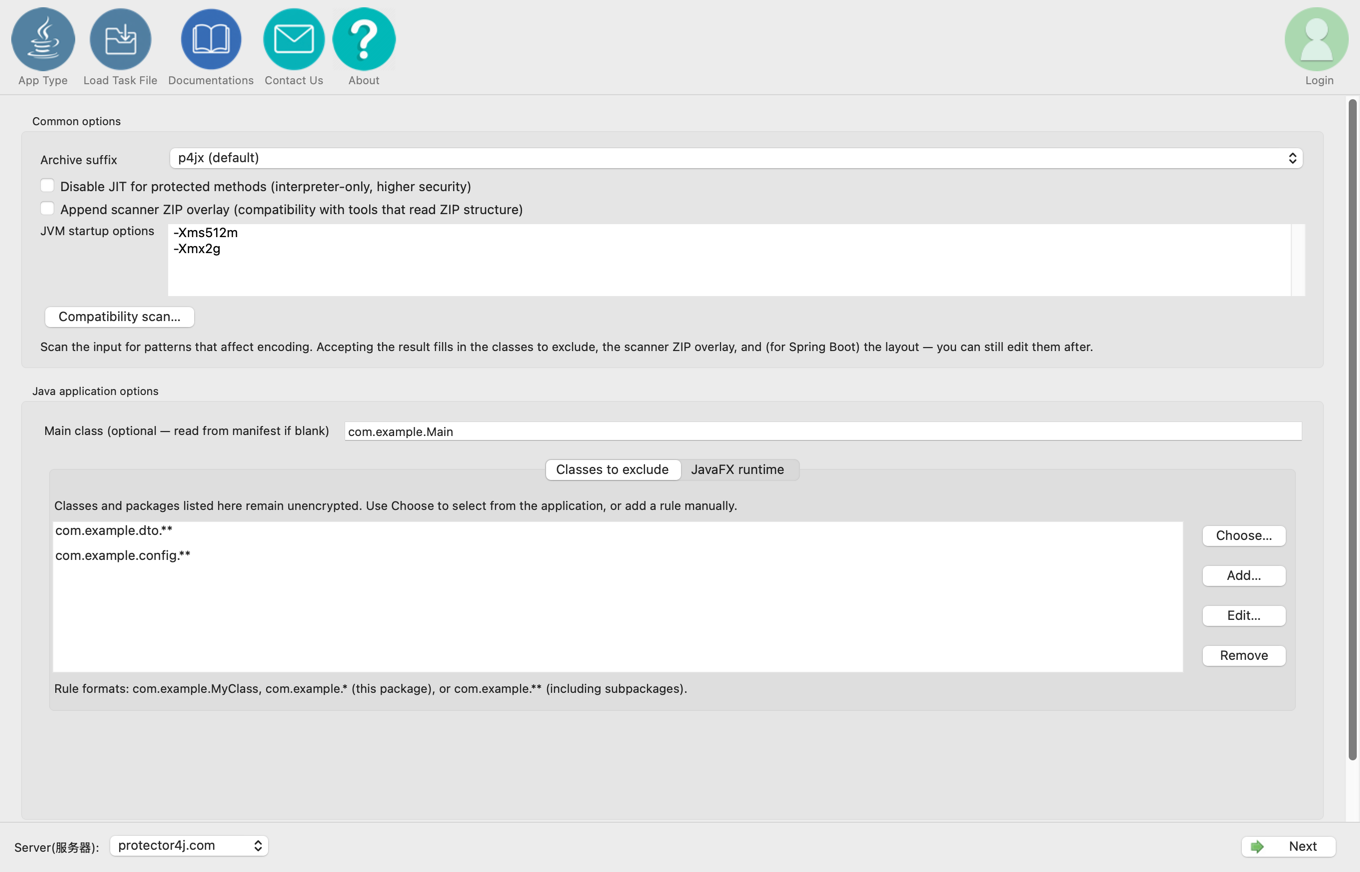
Main class
Left empty, the Main-Class is read from the input JAR's manifest. Enter a fully qualified class name only if the manifest has no main class, or if you need to override it — for example com.example.Main.
CLI equivalent: --main com.example.Main.
Classes to exclude
By default every application class is protected. Classes and packages in this list stay unprotected, which suits DTOs, entities, configuration classes, JNI bridge classes, and anything a framework enhances or that needs to read its own real bytecode. For the rule syntax, see "Protection scope and exclusion rules" below.
JavaFX runtime
For a plain JavaFX application, tick Bundle JavaFX into the packaged runtime. For WebView you can choose:
- Auto: include it when
javafx.scene.webis detected; - Include: always include
fx-webkit; - Exclude: never include it.
WebView adds roughly 40 MB. The GUI downloads the components for your target Java version and platform; use the CLI if you need to point at a local offline JavaFX directory.
CLI equivalents: --javafx, --javafx-webview, and --no-javafx-webview. Auto has no extra option because the packager decides from the application's own references.
5. Spring Boot options
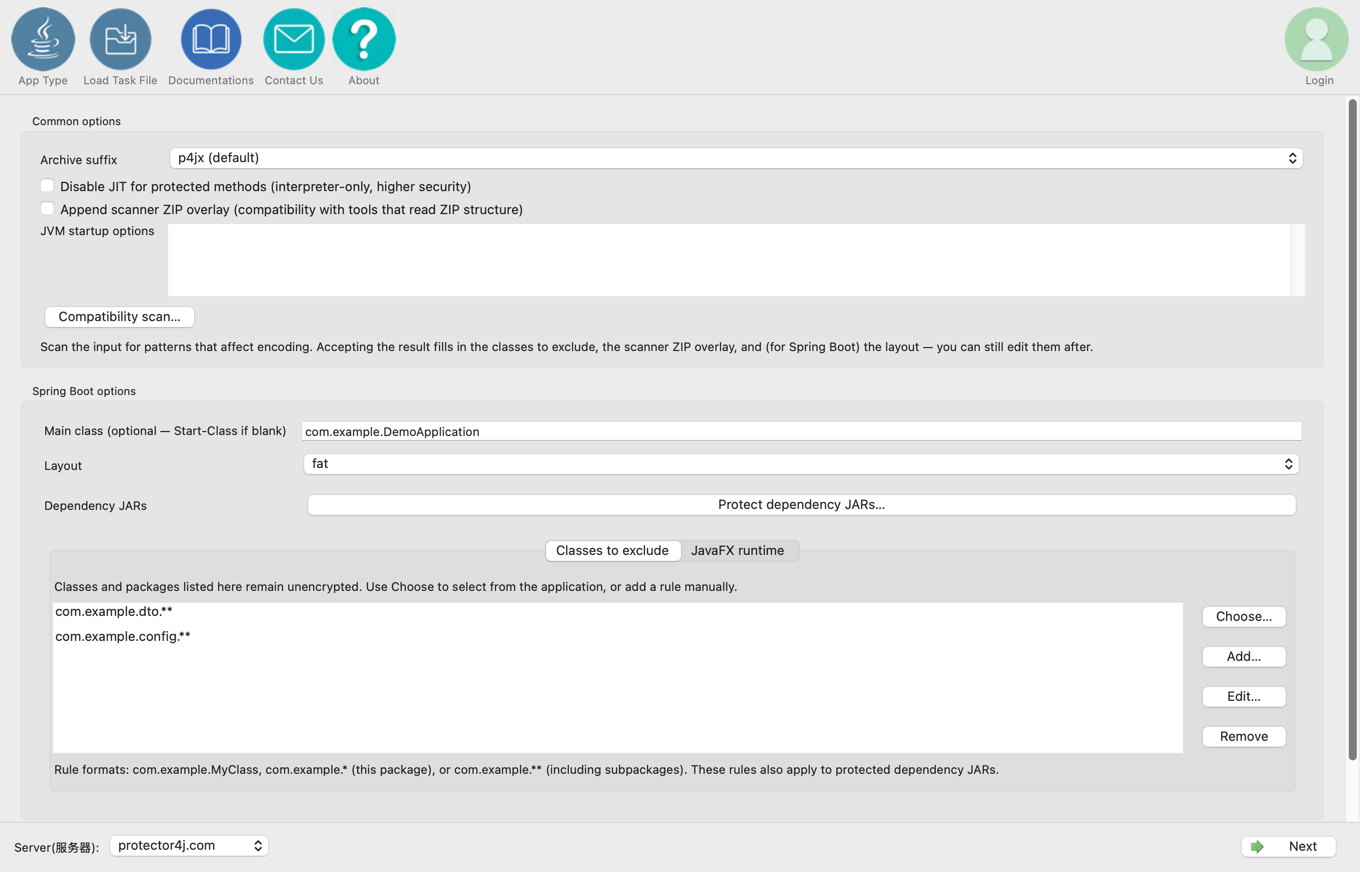
Main class
Left empty, Start-Class is read from the manifest. Enter a fully qualified class name to override it.
CLI equivalent: --main com.example.Application.
Layout
| Layout | When to use it |
|---|---|
p4jx-fat | The default. Standard Spring Boot services, and the widest protection scope. |
fat | The application needs the physical Spring Boot JAR structure, for example when it uses ClassGraph or Reflections. |
separate | An older integration environment that requires a flat lib/* class path. |
If the compatibility scan explicitly recommends fat, do not force p4jx-fat and hope the ZIP overlay covers it. For details on each layout, see Protect Spring Boot Applications.
CLI equivalents: --layout p4jx-fat, --layout fat, --layout separate.
Protect dependency JARs…
Dependencies in BOOT-INF/lib are unprotected by default. Select only your own proprietary dependencies; do not encrypt third-party framework packages such as Spring, Tomcat, logging libraries, or database drivers. Signed JARs cannot be selected, because modifying them would break their signature.
Selecting a dependency protects all of its classes, but you can still use Classes to exclude to leave specific classes or packages in it unprotected. All three Spring Boot layouts support protecting dependencies.
CLI equivalent: --protect-lib 'company-core.jar,company-domain.jar'. The CLI also accepts glob patterns; the GUI records the exact file names you selected.
Classes to exclude, and JavaFX
These work exactly as they do for a Java Application. Exclusion rules apply both to the application classes and to any dependency JARs you chose to protect. A Spring Boot desktop application can also bundle JavaFX and WebView from the JavaFX runtime tab.
6. Tomcat options
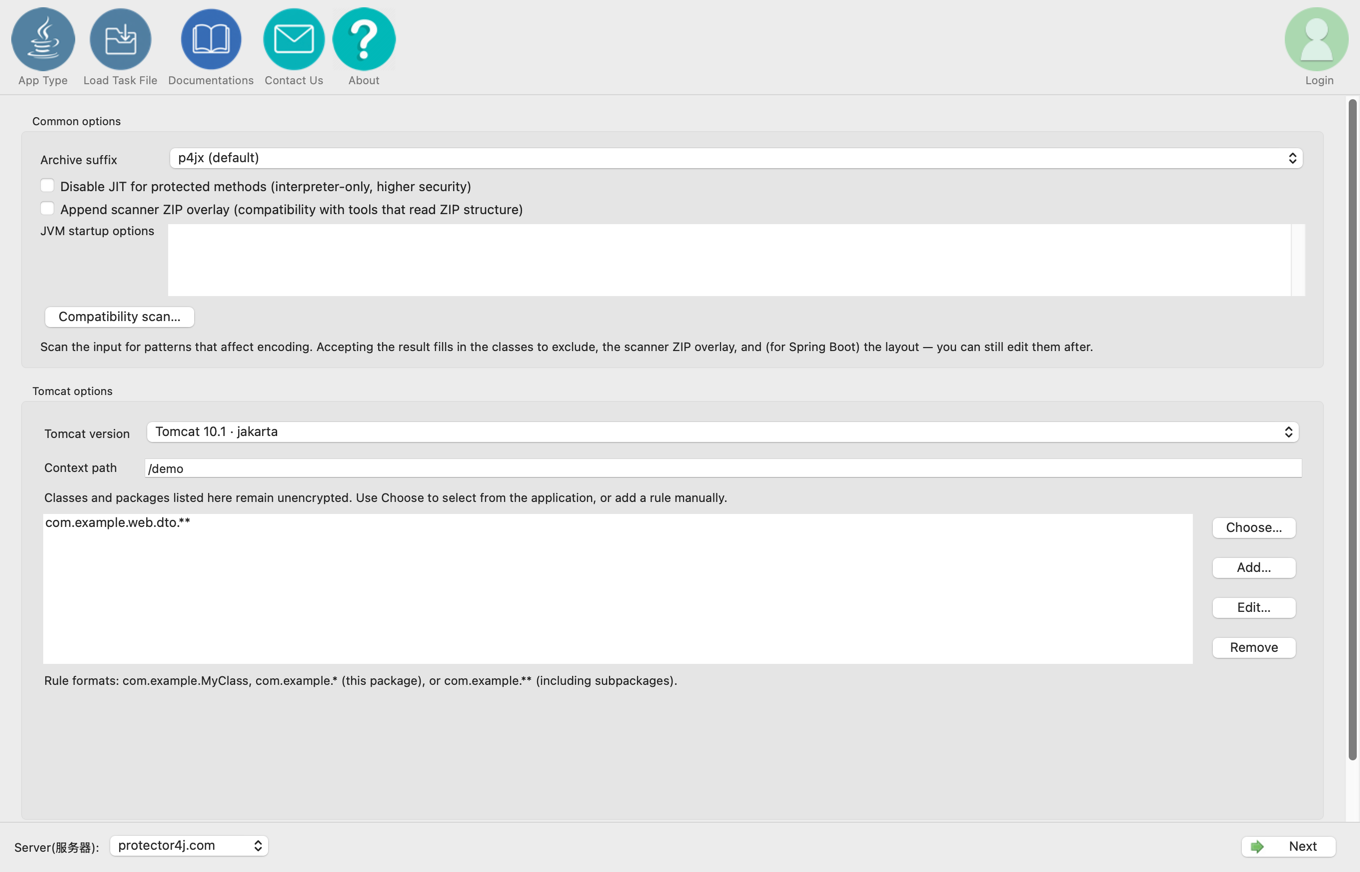
Tomcat version
- If the WAR uses
javax.servlet.*, select Tomcat 9 · javax; - If it uses
jakarta.servlet.*, select Tomcat 10.1 · jakarta.
Tomcat 10.1 requires Java 11 or later. Run a compatibility scan if you are unsure. If the application uses both javax and jakarta, do not force a version — resolve the dependency conflict first.
Advanced mode preselects no version: you have to accept the scan's recommendation or choose one yourself before continuing. CLI equivalents: --tomcat-version 9 or --tomcat-version 10; the CLI also accepts auto.
Context path
Enter the deployment path starting with /, such as /app. Left blank, /app is used. When adding an application to an existing Tomcat output directory, the context path must not clash with an existing application.
CLI equivalent: --context /app.
Classes to exclude
By default the application classes under WEB-INF/classes are protected, and WEB-INF/lib is not. Servlets, filters, listeners, DTOs, configuration classes, entities, JNI bridge classes, and anything the container has to enhance should normally be excluded.
7. Protection scope and exclusion rules
In advanced mode the GUI protects every application class by default, and you draw the framework boundary with Classes to exclude. Three rule forms are supported:
com.example.SecretService   this class only
com.example.service.*       this package, not its sub-packages
com.example.service.**      this package and all its sub-packages
Pick classes from the class tree with Choose…, or type them in with Add…. Selecting a package covers that package and its sub-packages by default; use .* to limit it to the package itself. For Spring Boot, the class tree also shows the dependency JARs you chose to protect.
The recommended arrangement is: public boundary or framework entry → ordinary facade or interface → protected core implementation. Do not encrypt every third-party dependency and framework entry point just to make the protected surface look bigger.
8. Exporting, reusing, and the final review
Export parameters… exports a p4j-task.yml task file, which you can edit by hand. It records the options as they were resolved, but never the account email or password. You can restore the task later with Load task file at the top of the window, which also still reads the p4j-encrypt-run.sh and .bat scripts exported by older versions.
On the output page, check at least:
- the input file, application type, Java version, and every target platform;
- the archive suffix, JIT setting, scanner overlay, and JVM options;
- JavaFX and WebView, the Spring Boot layout, or the Tomcat version and context path;
- the protected dependency JARs and all exclusion rules;
- the output directory, and whether a new
p4jx-xxxxsubdirectory is created.
Once the package is built, use its startup script on every target platform to verify startup, framework scanning, serialization, reflection, resource loading, and your core business paths. Getting the advanced options right only means the task was configured correctly — it is no substitute for testing the finished product.