Protect JavaFX Applications
JavaFX can be enabled for both ordinary Java applications and Spring Boot desktop applications. The slim P4JX runtime does not include JavaFX by default; you have to enable it explicitly, or let the compatibility scan enable it for you.
1. Using the GUI
-
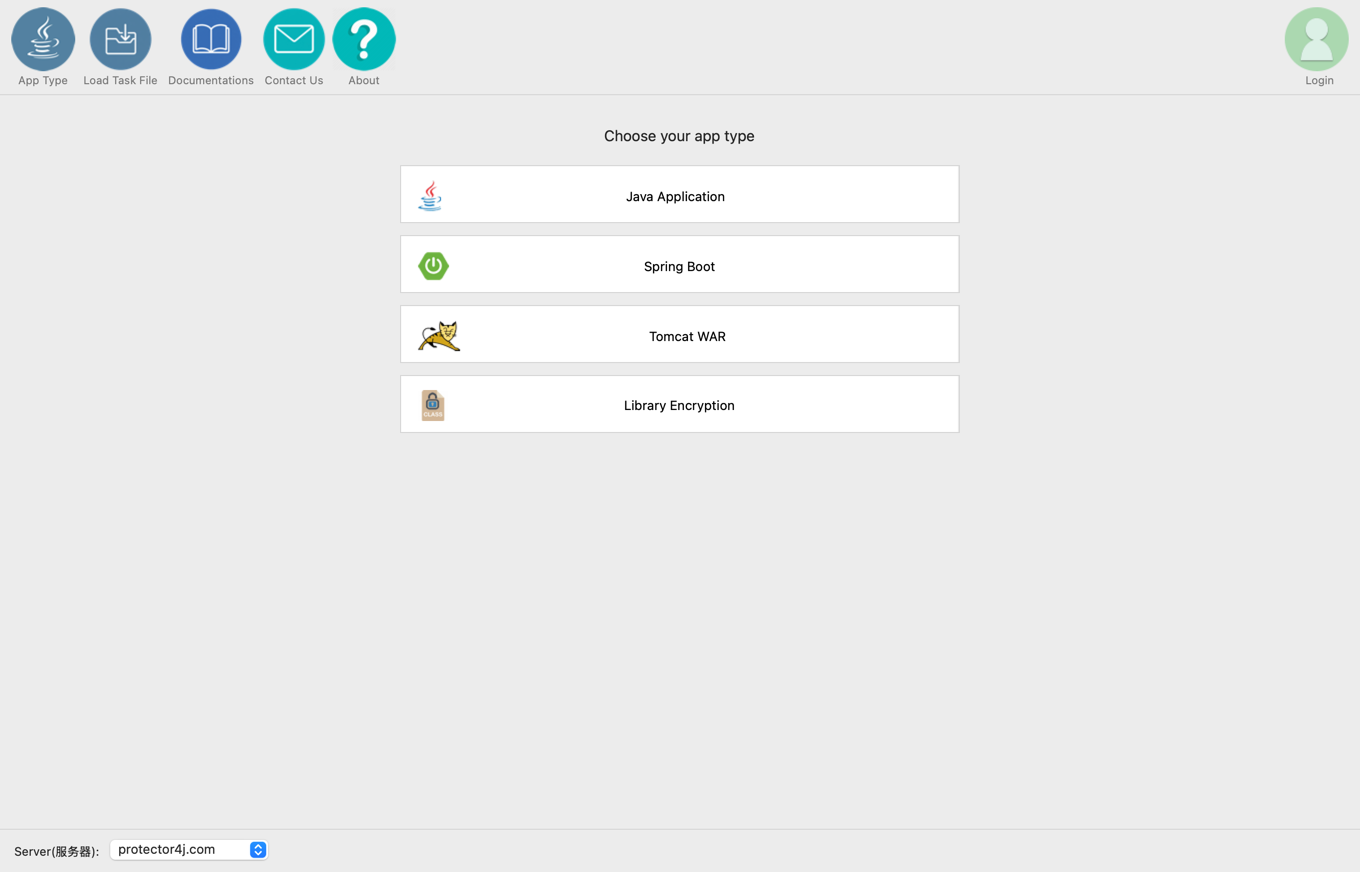
For a plain JavaFX application, select Java Application on the application type page. For a JavaFX desktop application built on a Spring container, select Spring Boot. Library Encryption only produces a protected archive and is not a substitute for packaging a real JavaFX application.
-
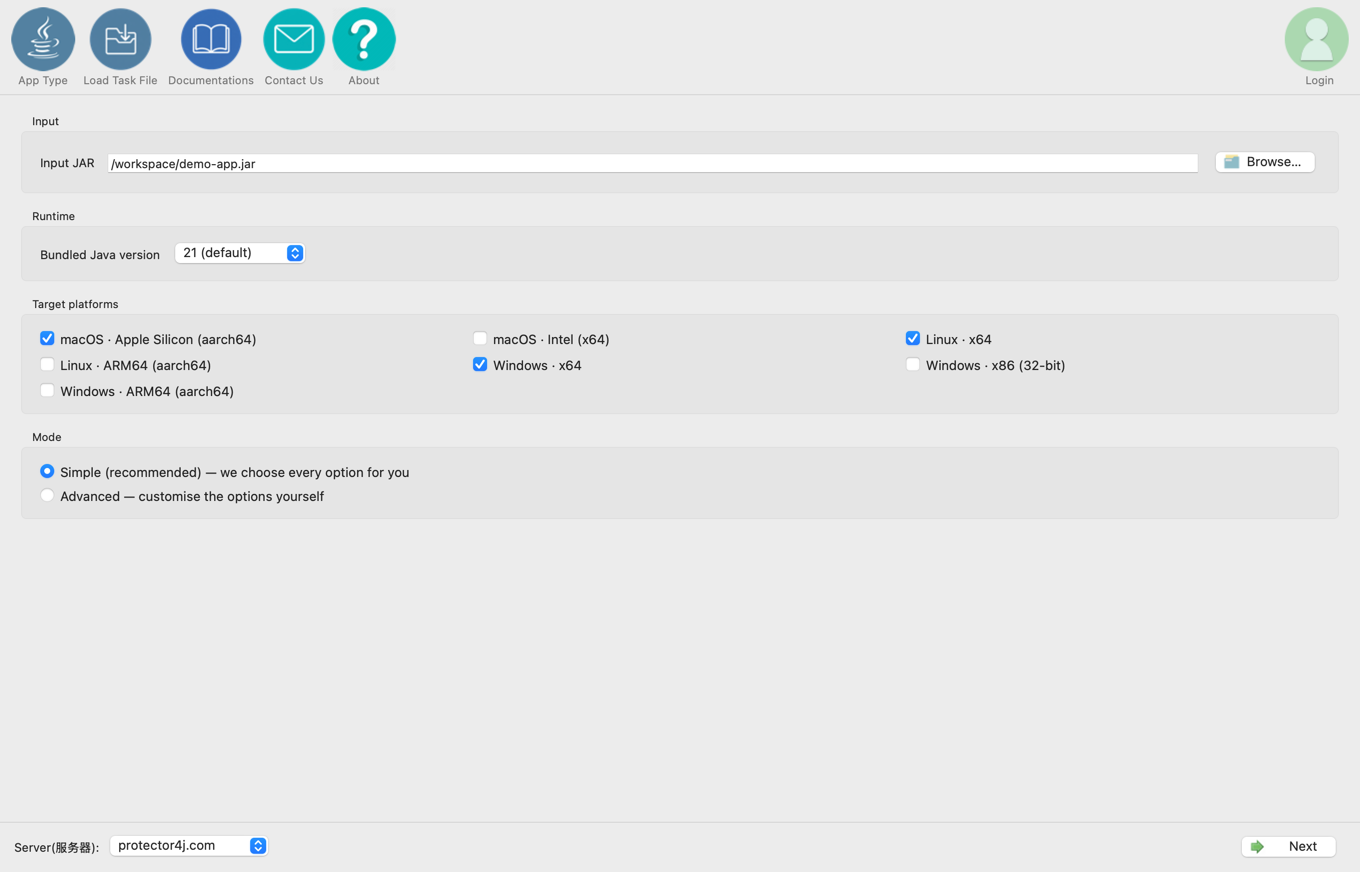
Select the input JAR, the bundled Java version, and the target platforms, then choose simple or advanced mode. The JavaFX components are fetched separately for each target Java version and platform, so a multi-platform task produces a separate output package for each.
-
In simple mode, if the compatibility scan finds
javafx.*references or JavaFX dependencies, it enables JavaFX automatically and explains why in the scan results. If it also findsjavafx.scene.web, WebView is included as well. The scan is a static heuristic analysis, so check the JavaFX summary again on the output page. -
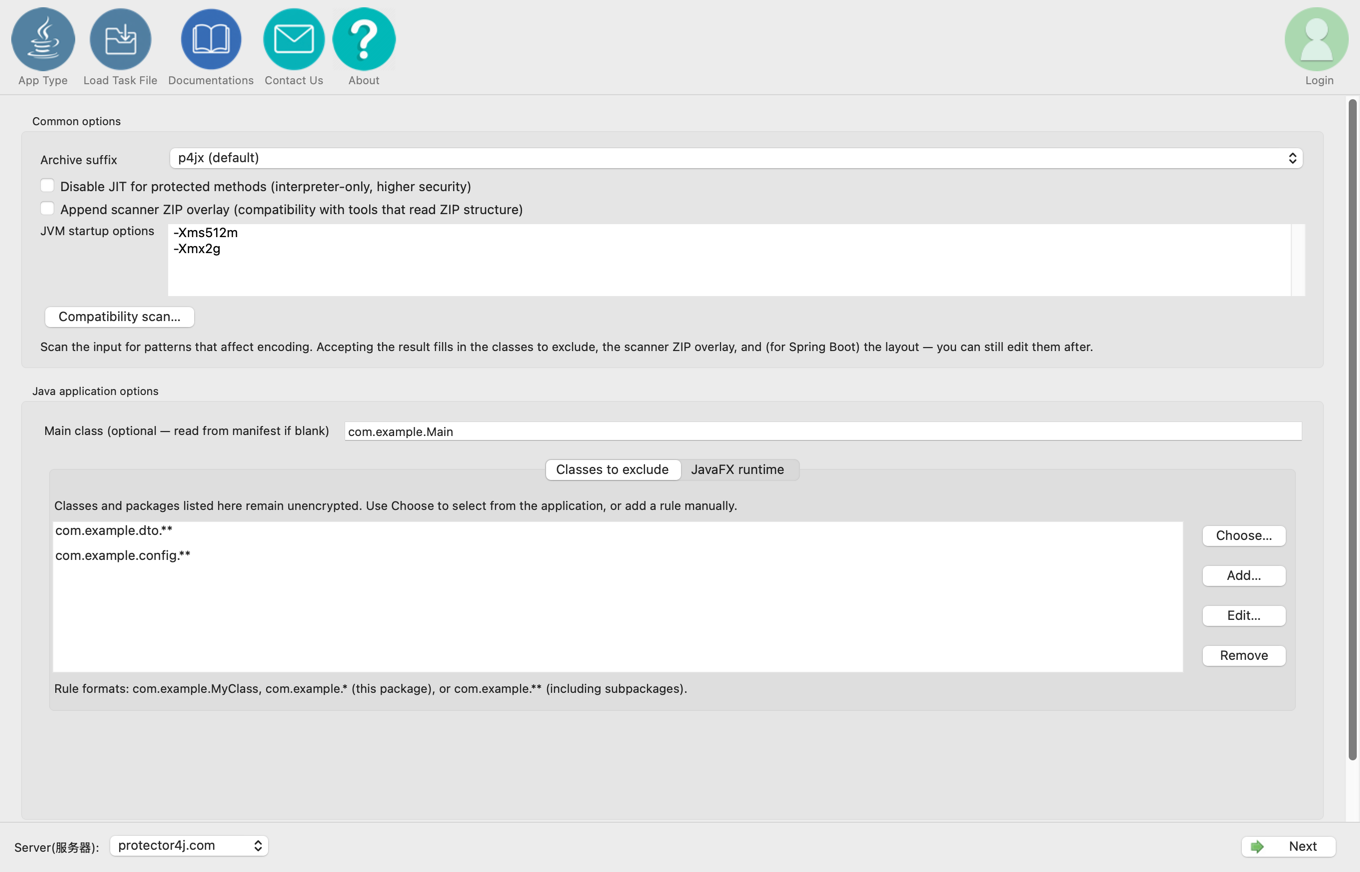
In advanced mode, tick Bundle JavaFX into the packaged runtime on the JavaFX runtime tab, then choose a WebView strategy:
- Auto: decided by whether the application references
javafx.scene.web; - Include: always include WebView (
fx-webkit); - Exclude: never include WebView.
For an ordinary Java application, the tab looks like this:
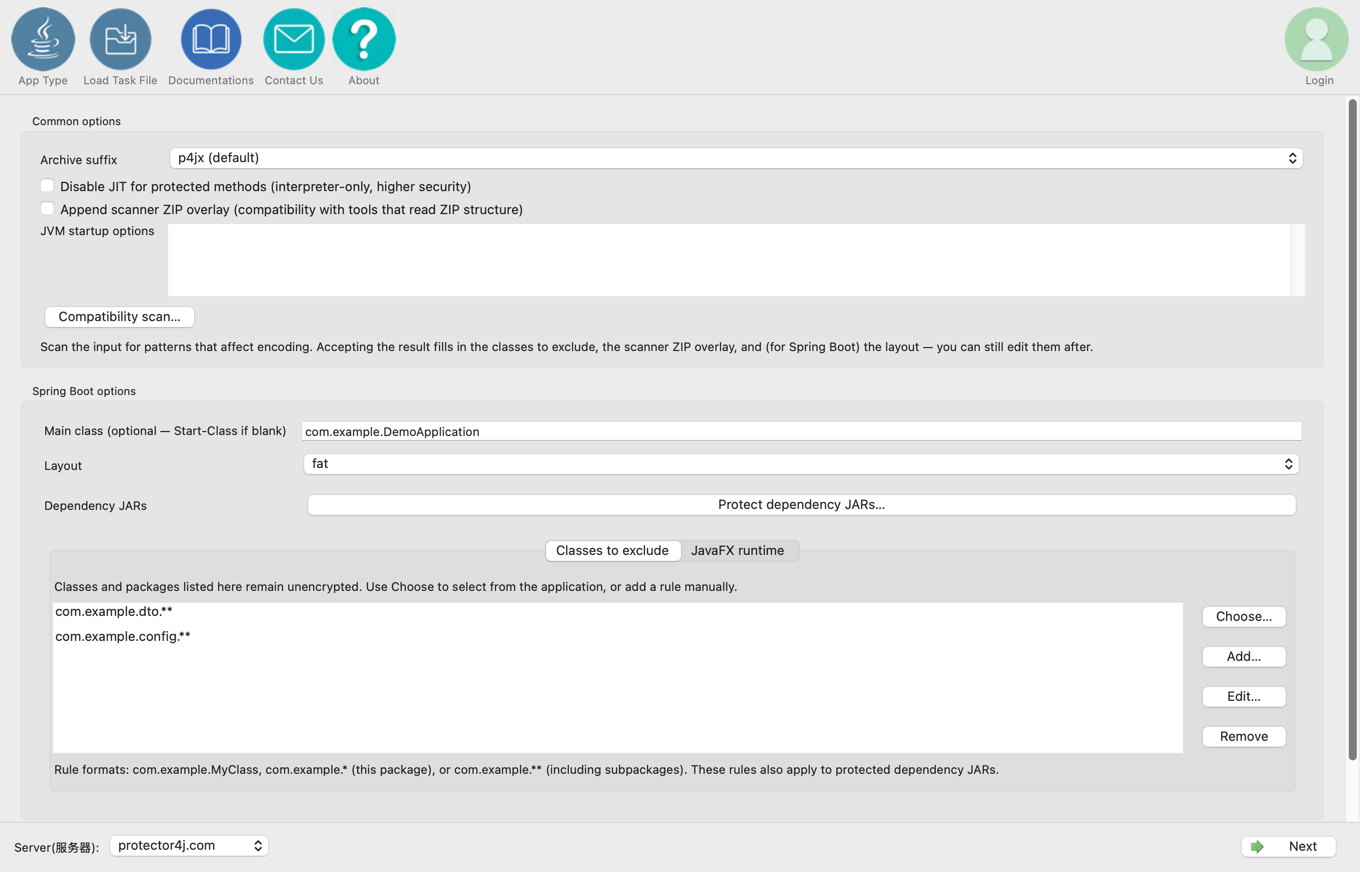
Spring Boot desktop applications use a tab of the same name:
- Auto: decided by whether the application references
-
After choosing the output directory, confirm that the summary shows JavaFX as bundled and that the WebView setting is what you expect, then click Run protection. Once the package is built, use its startup script to verify the window, FXML, CSS and image resources, and WebView on every target platform.
The WebView components add roughly 40 MB, so choose Exclude to keep the package smaller when you do not use it. For the other settings on the advanced pages, see Protector4J Advanced Mode Settings.
2. Fetching components with the CLI
p4j javaapp fx-app.jar dist --javafx
For Spring Boot with JavaFX:
p4j springboot fx-boot.jar dist --javafx
To force WebView in or out:
--javafx-webview
--no-javafx-webview
The tool downloads the matching components from the public download site for your region, based on the target JDK line and platform. Neither the JavaFX download nor the VLX JRE download requires handing a cloud storage key to the client.
3. Offline components
The CLI accepts a local directory:
p4j javaapp fx-app.jar dist --javafx /opt/p4jx-fx
The directory can hold either:
fx-core.tar.gzplus an optionalfx-webkit.tar.gz; or- an unpacked JavaFX tree with
lib/at its root.
The GUI has no option for selecting a local JavaFX directory, so use the CLI when you are offline.
4. FXML
If the application uses FXMLLoader, the compatibility scan recommends enabling the scanner ZIP overlay:
p4j javaapp fx-app.jar dist --javafx --zip-overlay scanner
FXML resources, controller signatures, and framework scanning all need to be tested by actually starting the application on the target platform.
5. Java 8 versus Java 11 and later
- Java 8 uses the
jfxrt.jarand extension directory model, so the generated scripts usually need no module options. - Java 11 and later use modular JavaFX JARs, and the generated scripts set a dedicated module path together with
--add-modules.
Always start through the generated run.sh, run.command, or run.bat. Do not point the module path at the whole of vlxjre/lib yourself.
6. How automatic detection decides
The detector examines the class references in your own code and the file names of the dependency JARs. It deliberately does not scan the bytecode of every third-party dependency, which would report optional JavaFX integrations as if they were actually in use.
If JavaFX is shaded into a dependency whose name gives no hint of it, automatic detection can miss it. Pass --javafx explicitly in that case.
7. Choosing the protection scope
- Whether to protect JavaFX
Applicationsubclasses, FXML controllers, and property models depends on how they behave in testing on your target Java version. - Bridge classes reached directly through JNI or native code should stay unprotected.
- Start with simple mode or
--compat-scan, then run regression tests covering window creation, FXML loading, CSS and image resources, WebView, and platform native libraries.