GUI Guide
The GUI runs each protection task as a wizard:
Application type → Input, runtime, platform → Simple or advanced options → Windows EXE launcher (optional) → Output review → Run
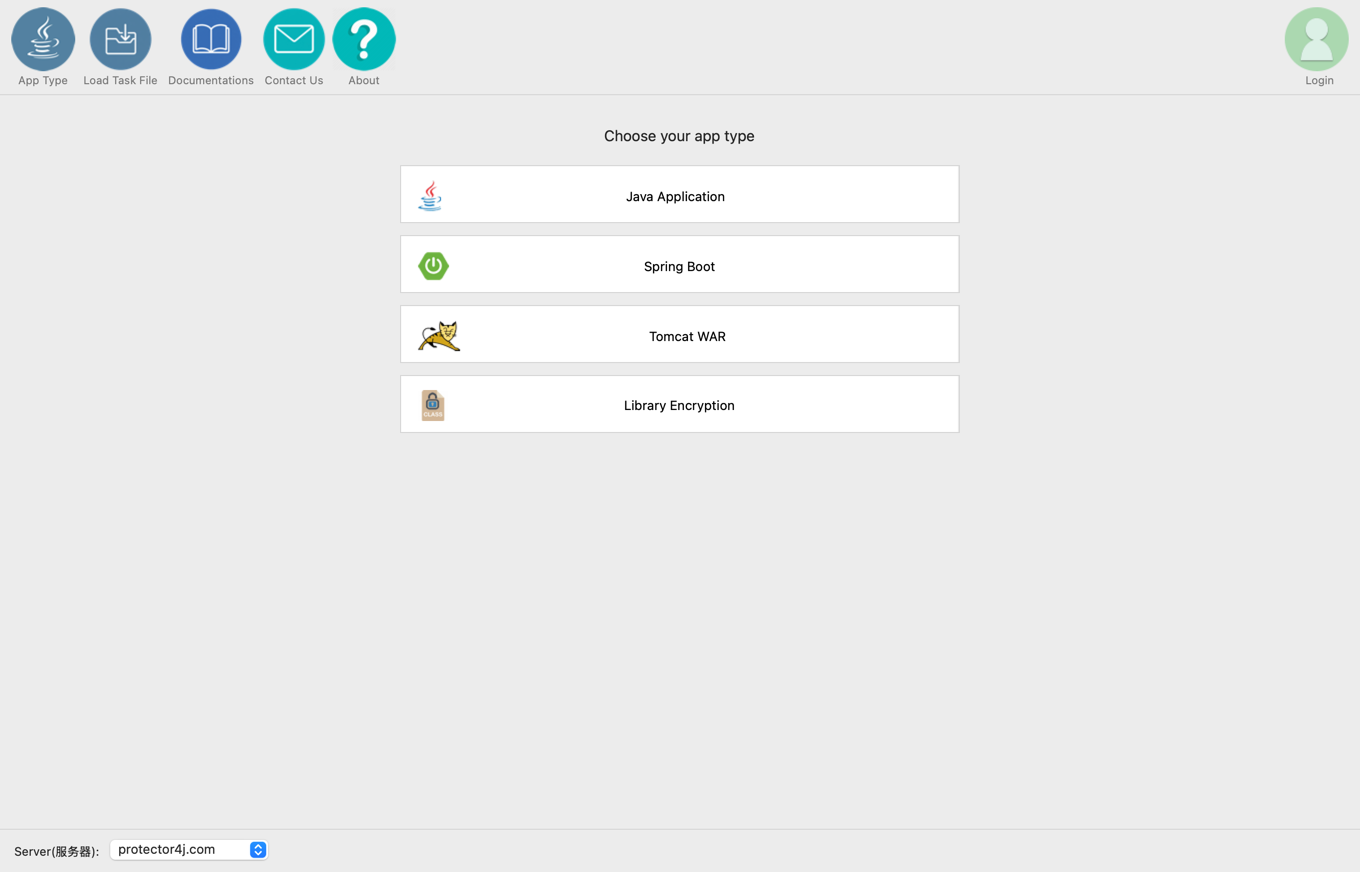
1. Application type
| GUI option | Input | Output | CLI equivalent |
|---|---|---|---|
| Java Application | Ordinary executable JAR | Complete application directory | javaapp |
| Spring Boot | Spring Boot application | Complete application directory | springboot |
| Tomcat WAR | WAR | Directory with embedded Tomcat | tomcat |
| Library Encryption | Any JAR | A single P4JX archive | encode |
Choosing the wrong type can leave the main class, dependencies, web resources, or the launcher handled incorrectly.
2. Input, runtime, and target platforms
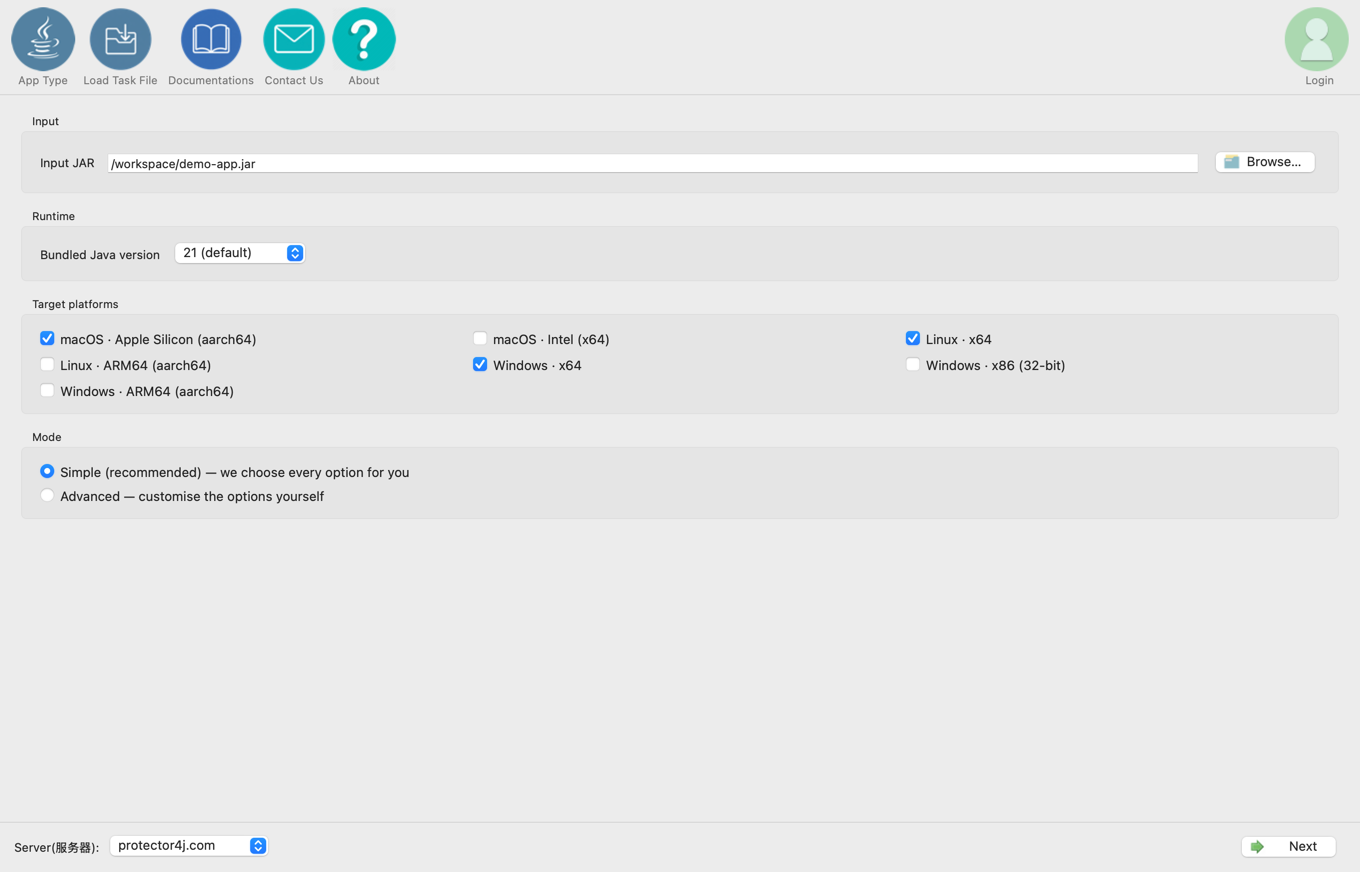
Each wizard run takes one input JAR or WAR. You then choose:
- Bundled Java version: 8, 11, 17, 21, or 25. The default is 21.
- Target platforms: you can select several at once.
- Mode: simple or advanced.
- Generate a Windows application EXE: optional, and requires at least one Windows target platform.
When you select several platforms, the tool writes a separate directory for each one.
3. Simple mode
Simple mode suits almost every first packaging run. As you leave the input page, the tool runs a compatibility scan and uses the results to decide:
- which classes to recommend excluding;
- whether to enable JavaFX and WebView;
- whether to enable the scanner ZIP overlay;
- whether to switch to the
.jararchive suffix; - the recommended layout for Spring Boot;
- whether to use Tomcat 9 or 10.1.
The scan produces recommendations from static analysis, not the results of a real test run. Always test the packaged application on the target platform.
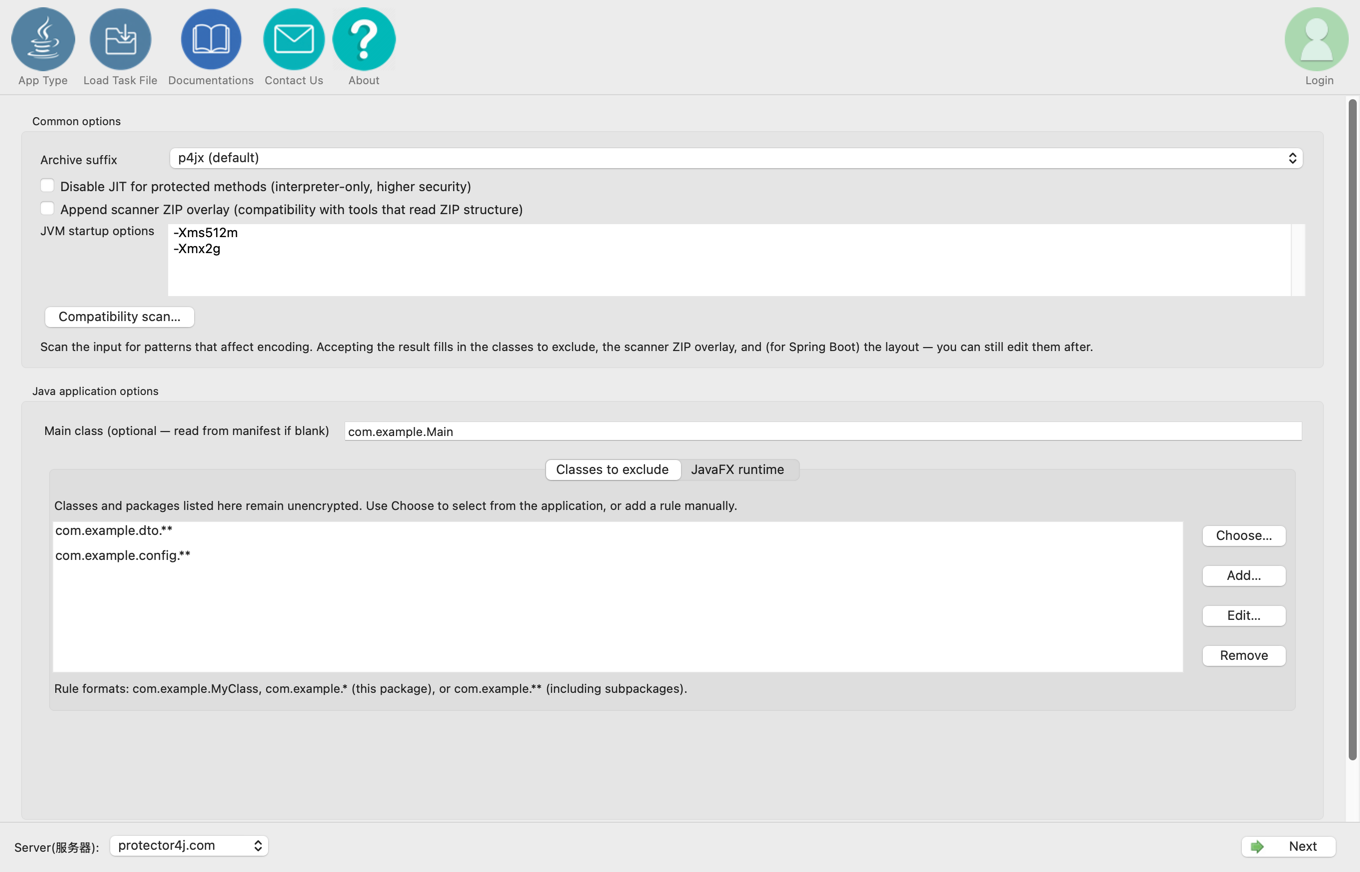
4. Advanced mode
Advanced mode lets you set the archive suffix by hand, decide whether to disable JIT, add the scanner overlay, set JVM options, define exclusion rules, and configure the options specific to each application type.
For full instructions, the meaning of every option, the defaults, and the differences between application types, see Protector4J Advanced Mode Settings.
5. Windows EXE launcher
Ticking Generate Windows application EXE (x64/x86/ARM64) on the input page adds a launcher page after the options page. The checkbox sits before the split between simple and advanced mode, so both modes can produce an EXE. Leave it unticked and the wizard goes straight to the output review page.
On the launcher page you can set:
- EXE file name: leave it blank to use the input file name; Tomcat uses
tomcat. - Launcher mode: console, or GUI with no console window.
- Windows icon: an optional
.icofile. - JVM startup options: one per line. When the EXE is enabled this is the only place the field appears, and whatever you enter goes into both the EXE and the startup scripts.
- Windows version information: file version, product version, company name, product name, file description, and copyright notice.
Library Encryption produces a single archive file, so it does not offer this option. For the full details, see Create a Windows EXE Launcher.
6. Exclusion rules
The GUI and the CLI use the same syntax:
com.example.SecretService   an exact class name
com.example.service.*       this package only
com.example.service.**      this package and every sub-package
Excluding DTOs, entities, controllers, configuration classes, JNI bridge classes, and anything that needs runtime bytecode enhancement lets you protect just the core business logic.
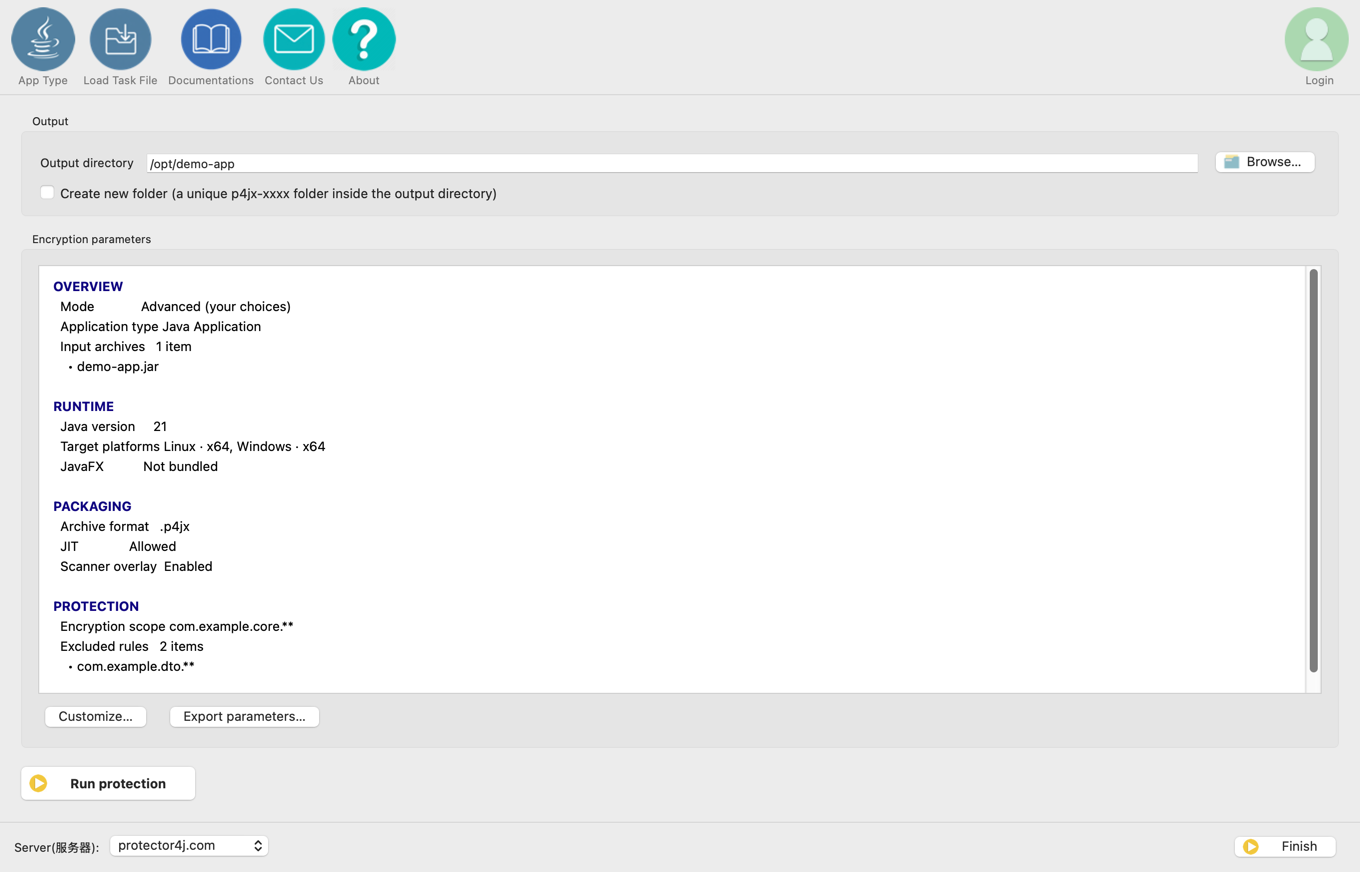
7. Output review
The last page shows:
- the input file and application type;
- the Java version and target platforms;
- whether JavaFX is enabled;
- the archive format, JIT setting, overlay, and Spring layout;
- the protection scope, exclusion rules, and Tomcat context path.
Tick Create new folder to place the result in a uniquely named p4jx-xxxx subdirectory of the output directory. It cannot be used when adding an application to an existing Tomcat package, because that requires pointing at the existing directory directly.
8. Exporting and loading task files
Both the advanced options page and the final review page can export a p4j-task.yml file, which you can edit by hand. The task file records the settings as they were resolved:
- the input, application type, and output settings;
- the Java version and one or more target platforms;
- the protection scope, compatibility, and packaging options.
Comments in the file show both the p4j --task-file <file> invocation and the equivalent plain command line. The account email and password are never written to the task file; without real account credentials at run time, the result is a trial build.
Use Load task file at the top of the window to read a YAML file back, restore the task, and jump straight to the final review page. Older p4j-encrypt-run.sh and .bat files can still be imported, but the GUI no longer exports run scripts.